Active buzzer with ESP32
How to connect an Active buzzer to an ESP32: the wiring, a sketch that works, and a simulator to try it in your browser before you build it.
Magnetic 12 mm · 3–12 V · ~2.3 kHz
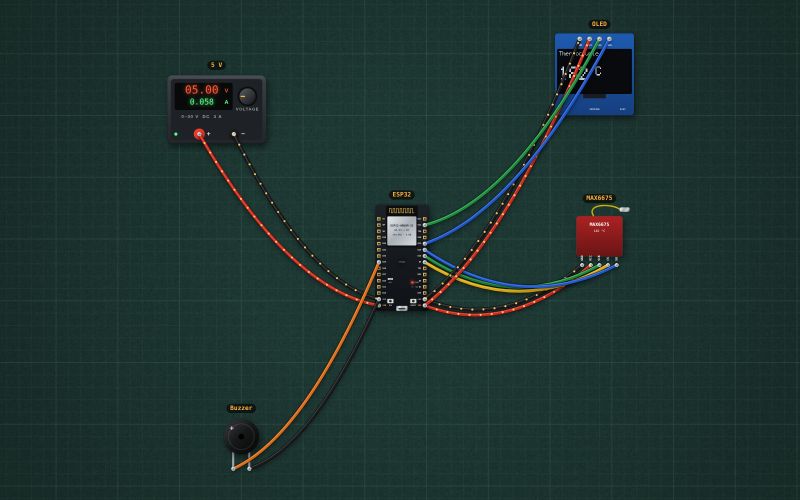
Wiring
| Active buzzer pin | ESP32 |
|---|---|
| pin 1 | GPIO25 |
| pin 2 | GND |
Run it in the labFree, no account needed. The same wiring, with the sketch already on the board.
Code
From the project ESP32 thermocouple thermometer with an alarm: MAX6675 and OLED. It also compiles in the Arduino IDE (ESP32 core 3.x) with the libraries it includes.
// Thermocouple thermometer for an oven, kiln or soldering station: a MAX6675 (SCK 18, CS 5, SO 19) reads a K-type
// thermocouple up to 1024 °C; the OLED (I2C 21/22) shows it; the buzzer on GPIO25 sounds at 250 °C and above.
#include <Wire.h>
#include <Adafruit_GFX.h>
#include <Adafruit_SSD1306.h>
#include <max6675.h>
const int TC_SCK = 18, TC_CS = 5, TC_SO = 19, BUZZER = 25;
const float ALARM_C = 250;
MAX6675 tc(TC_SCK, TC_CS, TC_SO);
Adafruit_SSD1306 display(128, 64, &Wire, -1);

void setup() {
  Serial.begin(115200);
  pinMode(BUZZER, OUTPUT);
  Wire.begin(21, 22);
  if (!display.begin(SSD1306_SWITCHCAPVCC, 0x3C)) Serial.println("OLED not found");
  delay(500);                            // the MAX6675 needs a moment after power-up
}

void loop() {
  float c = tc.readCelsius();            // NAN when the thermocouple is unplugged
  bool open = isnan(c);
  digitalWrite(BUZZER, !open && c >= ALARM_C ? HIGH : LOW);
  display.clearDisplay();
  display.setTextColor(SSD1306_WHITE);
  display.setTextSize(1); display.setCursor(0, 0); display.print("Thermocouple");
  display.setTextSize(3); display.setCursor(0, 24);
  if (open) display.print("OPEN"); else { display.print(c, 0); display.setTextSize(2); display.print(" C"); }
  display.display();
  if (open) Serial.println("Thermocouple open"); else { Serial.print(c, 1); Serial.println(" C"); }
  delay(300);                            // at least 220 ms between readings
}
For teachers
The project runs in the browser on a laptop or a phone, so every student can build and test it before the class touches a real board. Assign it on the teacher's page and set what counts as done: a prediction, a hidden fault found, or a passing test sheet.