WS2812 LED strip with ESP32
How to connect a WS2812 LED strip to an ESP32: the wiring, a sketch that works, and a simulator to try it in your browser before you build it.
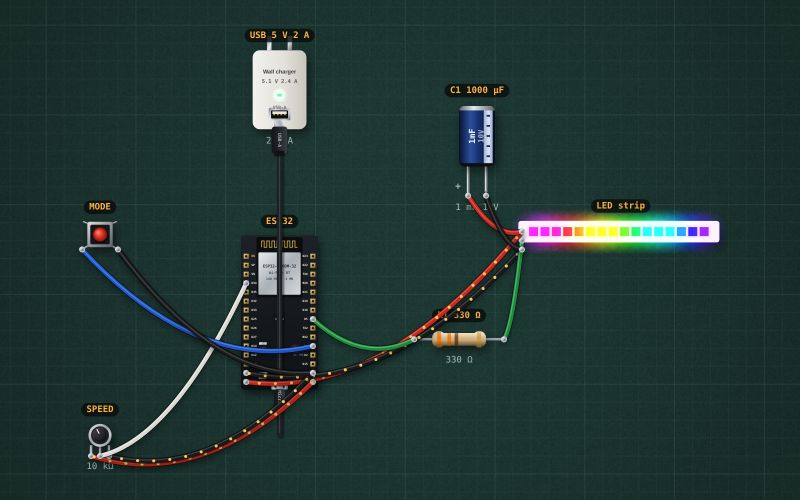
WS2812B · 8 LEDs · 5 V · each LED has its own driver chip, colour set over one data wire (Adafruit_NeoPixel) · up to 60 mA per LED at full white
Wiring
| WS2812 LED strip pin | ESP32 |
|---|---|
| +5V | VIN |
| DIN (data in) | GPIO5 (through a 330 Ω resistor) |
| GND | GND |
Run it in the labFree, no account needed. The same wiring, with the sketch already on the board.
Code
From the project ESP32 rainbow lamp: 16 WS2812 LEDs, a speed knob and a mode button. It also compiles in the Arduino IDE (ESP32 core 3.x) with the libraries it includes.
// Rainbow lamp: 16 WS2812 LEDs on GPIO5.
// The SPEED knob (GPIO34) sets how fast the colours move; MODE (GPIO4) steps through
// rainbow, one colour for the whole strip, and a single running dot.
#include <Adafruit_NeoPixel.h>

#define PIN_LEDS 5
#define NUM_LEDS 16
const int KNOB = 34;
const int MODE_BTN = 4;

Adafruit_NeoPixel strip(NUM_LEDS, PIN_LEDS, NEO_GRB + NEO_KHZ800);
long hue = 0;
int mode = 0;
int lastBtn = HIGH;

void setup() {
  pinMode(MODE_BTN, INPUT_PULLUP);
  delay(20);                 // let the pull-up settle before the first read
  lastBtn = digitalRead(MODE_BTN);
  strip.begin();
  strip.setBrightness(90);   // keep the current down: 16 LEDs at full white would draw about 1 A
  strip.show();
}

void loop() {
  int b = digitalRead(MODE_BTN);
  if (lastBtn == HIGH && b == LOW) mode = (mode + 1) % 3;
  lastBtn = b;

  int speed = map(analogRead(KNOB), 0, 4095, 100, 3000);
  for (int i = 0; i < NUM_LEDS; i++) {
    if (mode == 0) strip.setPixelColor(i, strip.ColorHSV(hue + i * 4096));
    else if (mode == 1) strip.setPixelColor(i, strip.ColorHSV(hue));
    else strip.setPixelColor(i, i == (hue / 4096) % NUM_LEDS ? strip.Color(255, 255, 255) : strip.Color(0, 0, 25));
  }
  strip.show();
  hue = (hue + speed) % 65536;
  delay(30);
}
For teachers
The project runs in the browser on a laptop or a phone, so every student can build and test it before the class touches a real board. Assign it on the teacher's page and set what counts as done: a prediction, a hidden fault found, or a passing test sheet.