I2C LCD with Arduino Uno
How to connect an I2C LCD to an Arduino Uno: the wiring, a sketch that works, and a simulator to try it in your browser before you build it.
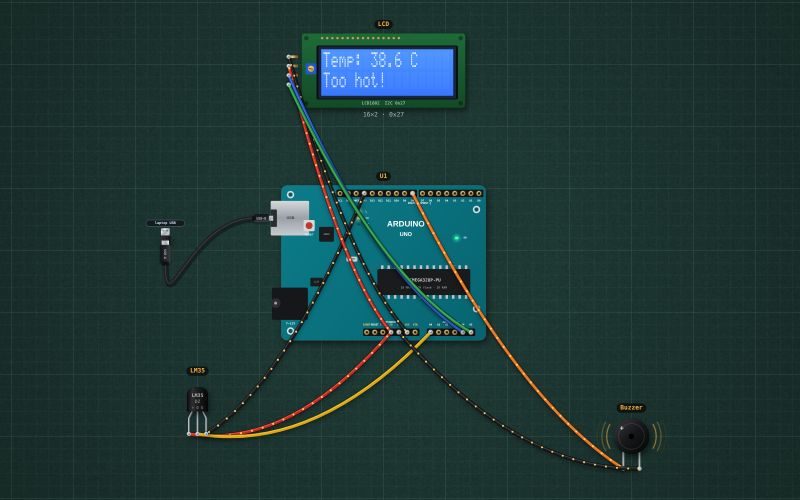
HD44780 16×2 character LCD · PCF8574 I2C backpack at 0x27 · 5 V · white on blue
Wiring
| I2C LCD pin | Arduino Uno |
|---|---|
| GND | GND |
| VCC | 5V |
| SDA | A4 (SDA) |
| SCL | A5 (SCL) |
The I²C backpack is usually at address 0x27, sometimes 0x3F: if the screen stays blank, run an I²C scanner sketch. Turn the blue trimmer on the back if you see only boxes.
Run it in the labFree, no account needed. The same wiring, with the sketch already on the board.
Code
From the project Arduino thermometer with an alarm: LM35, LCD and buzzer. It also compiles in the Arduino IDE with the libraries it includes.
// Thermometer with an alarm: an LM35 on A0 (10 mV per °C), the reading on a 16×2 I2C LCD, an active buzzer on D8 above 35 °C.
#include <Wire.h>
#include <LiquidCrystal_I2C.h>
LiquidCrystal_I2C lcd(0x27, 16, 2);
const int SENSOR = A0, BUZZER = 8;
const float ALARM_C = 35.0;

void setup() {
  Serial.begin(9600);
  pinMode(BUZZER, OUTPUT);
  lcd.init(); lcd.backlight();
}

void loop() {
  float c = analogRead(SENSOR) * 500.0 / 1023.0;      // 5 V reference: 1023 = 500 °C worth of 10 mV
  bool hot = c >= ALARM_C;
  digitalWrite(BUZZER, hot ? HIGH : LOW);
  lcd.setCursor(0, 0); lcd.print("Temp: "); lcd.print(c, 1); lcd.print(" C   ");
  lcd.setCursor(0, 1); lcd.print(hot ? "Too hot!        " : "OK              ");
  Serial.print(c, 1); Serial.println(" C");
  delay(500);
}
Also used in
- Arduino reaction-time game on an I²C LCD
- Arduino keypad door lock: 4×4 keypad, servo bolt and LCD
- Reaction-time game
- Keypad door lock
For teachers
The project runs in the browser on a laptop or a phone, so every student can build and test it before the class touches a real board. Assign it on the teacher's page and set what counts as done: a prediction, a hidden fault found, or a passing test sheet.