Push button with ESP32
How to connect a Push button to an ESP32: the wiring, a sketch that works, and a simulator to try it in your browser before you build it.
12 mm tactile · momentary · hold to close
Wiring
| Push button pin | ESP32 |
|---|---|
| pin 1 | GPIO4 |
| pin 2 | GND |
With INPUT_PULLUP no external resistor is needed: the pin reads HIGH, and LOW while the button is pressed.
Run it in the labFree, no account needed. The same wiring, with the sketch already on the board.
Code
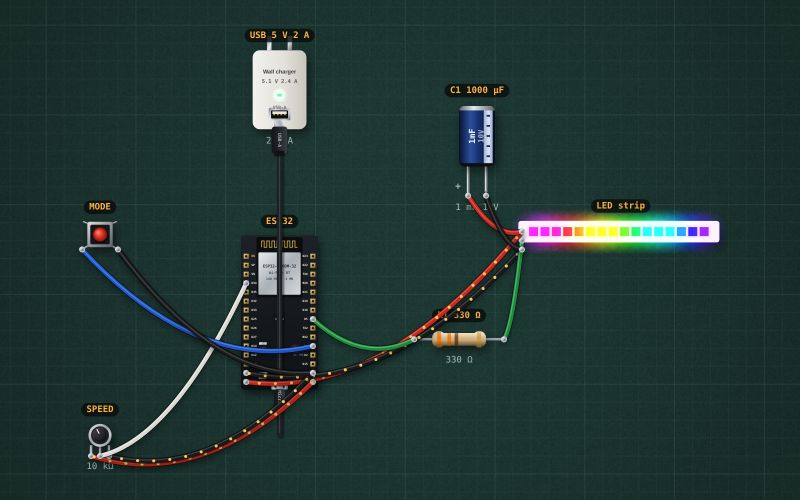
From the project ESP32 rainbow lamp: 16 WS2812 LEDs, a speed knob and a mode button. It also compiles in the Arduino IDE (ESP32 core 3.x) with the libraries it includes.
// Rainbow lamp: 16 WS2812 LEDs on GPIO5.
// The SPEED knob (GPIO34) sets how fast the colours move; MODE (GPIO4) steps through
// rainbow, one colour for the whole strip, and a single running dot.
#include <Adafruit_NeoPixel.h>

#define PIN_LEDS 5
#define NUM_LEDS 16
const int KNOB = 34;
const int MODE_BTN = 4;

Adafruit_NeoPixel strip(NUM_LEDS, PIN_LEDS, NEO_GRB + NEO_KHZ800);
long hue = 0;
int mode = 0;
int lastBtn = HIGH;

void setup() {
  pinMode(MODE_BTN, INPUT_PULLUP);
  delay(20);                 // let the pull-up settle before the first read
  lastBtn = digitalRead(MODE_BTN);
  strip.begin();
  strip.setBrightness(90);   // keep the current down: 16 LEDs at full white would draw about 1 A
  strip.show();
}

void loop() {
  int b = digitalRead(MODE_BTN);
  if (lastBtn == HIGH && b == LOW) mode = (mode + 1) % 3;
  lastBtn = b;

  int speed = map(analogRead(KNOB), 0, 4095, 100, 3000);
  for (int i = 0; i < NUM_LEDS; i++) {
    if (mode == 0) strip.setPixelColor(i, strip.ColorHSV(hue + i * 4096));
    else if (mode == 1) strip.setPixelColor(i, strip.ColorHSV(hue));
    else strip.setPixelColor(i, i == (hue / 4096) % NUM_LEDS ? strip.Color(255, 255, 255) : strip.Color(0, 0, 25));
  }
  strip.show();
  hue = (hue + speed) % 65536;
  delay(30);
}
Also used in
- ESP32 stopwatch with lap times on an 8-digit MAX7219 display
- ESP32 kitchen scale: HX711, load cell and OLED
- Stopwatch on a MAX7219 display
For teachers
The project runs in the browser on a laptop or a phone, so every student can build and test it before the class touches a real board. Assign it on the teacher's page and set what counts as done: a prediction, a hidden fault found, or a passing test sheet.